Slack
Slack is a widely used cloud-based team collaboration and messaging platform. It is designed to facilitate communication and collaboration within organizations by providing a centralized space for teams to exchange messages, share files, and integrate with other tools and services. You can set up Wallarm to send notifications to your Slack channel(s). If you want to send notifications to several different Slack channels or accounts, create several Slack integrations.
Setting up integration
-
Open the Integrations section.
-
Click the Slack block or click the Add integration button and choose Slack.
-
Enter an integration name.
-
Open Webhook settings in Slack and add a new Webhook choosing the channel to post messages to.
-
Copy the provided Webhook URL and paste the value into the Webhook URL field in Wallarm UI.
-
Choose event types to trigger notifications.
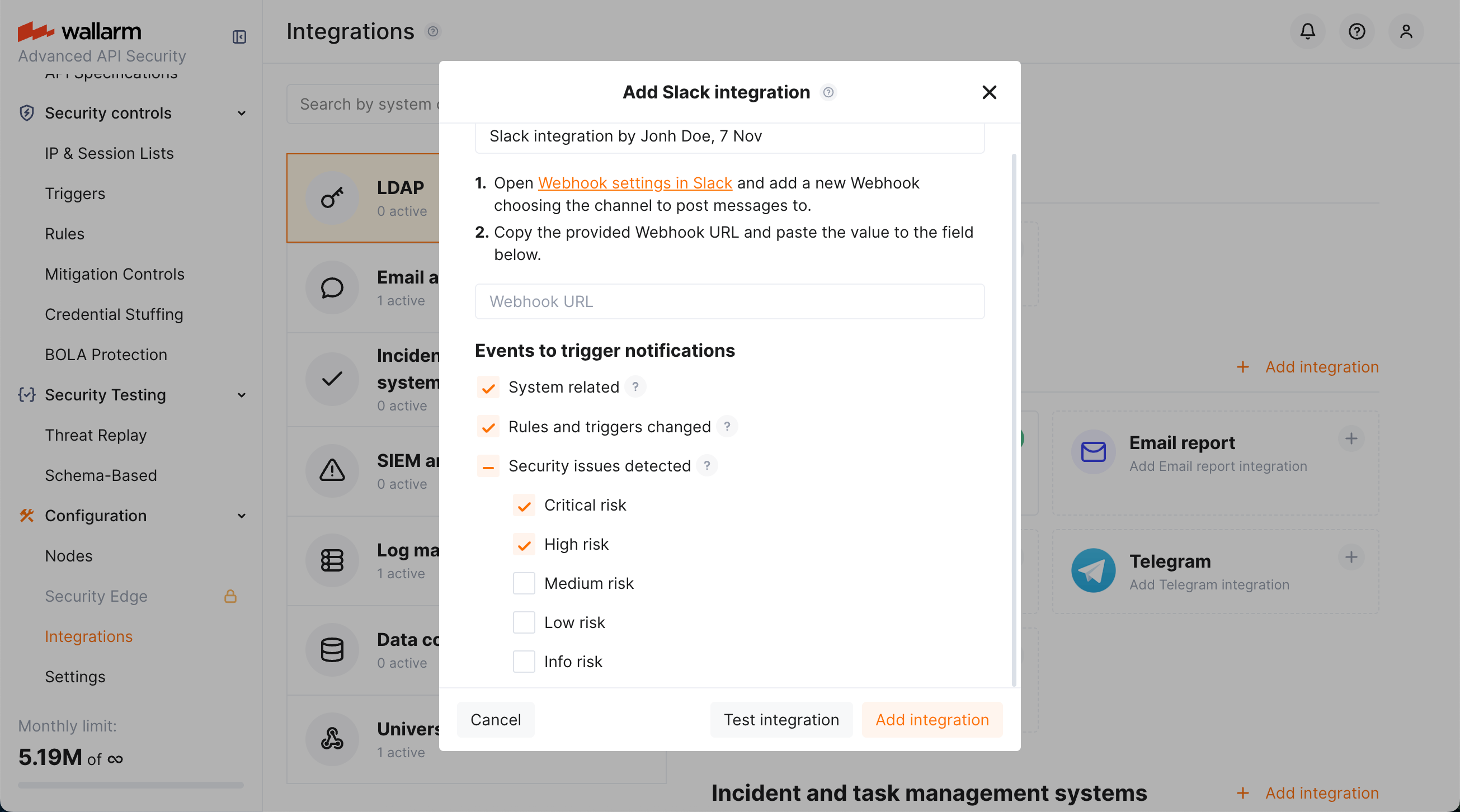
Details on available events:
- System related:
- User changes (newly created, deleted, role change)
- Integration changes (disabled, deleted)
- Application changes (newly created, deleted, name change)
- Errors during regular update of specifications used for rogue API detection or API specification enforcement
- Rules and triggers changed (creating, updating, or deleting the rule or trigger)
- Security issues detected by all methods, all or only for the selected risk level(s):
- Critical risk
- High risk
- Medium risk
- Low risk
- Info risk
- System related:
-
Click Test integration to check configuration correctness, availability of the target system, and the notification format.
This will send the test notifications with the prefix
[Test message]: -
Click Add integration.
Setting up additional alerts
Besides the notifications you have already set up through the integration card, Wallarm triggers allow you to select additional events for notifications:
-
Number of attacks, hits or incidents per time interval (day, hour, etc.) exceeds the set number
What is not counted
- For attacks:
- The experimental attacks based on the custom regular expressions.
- For hits:
- The experimental hits based on the custom regular expressions.
- Hits not saved in the sample.
- For attacks:
-
Changes in API took place
-
IP address was denylisted
-
New rogue API (shadow, zombie) was detected
-
New user was added to the company account
To detail the condition, you can add one or more filters. As soon as the condition and filters are set, select the integration through which the selected alert should be sent. You can select several integrations simultaneously.
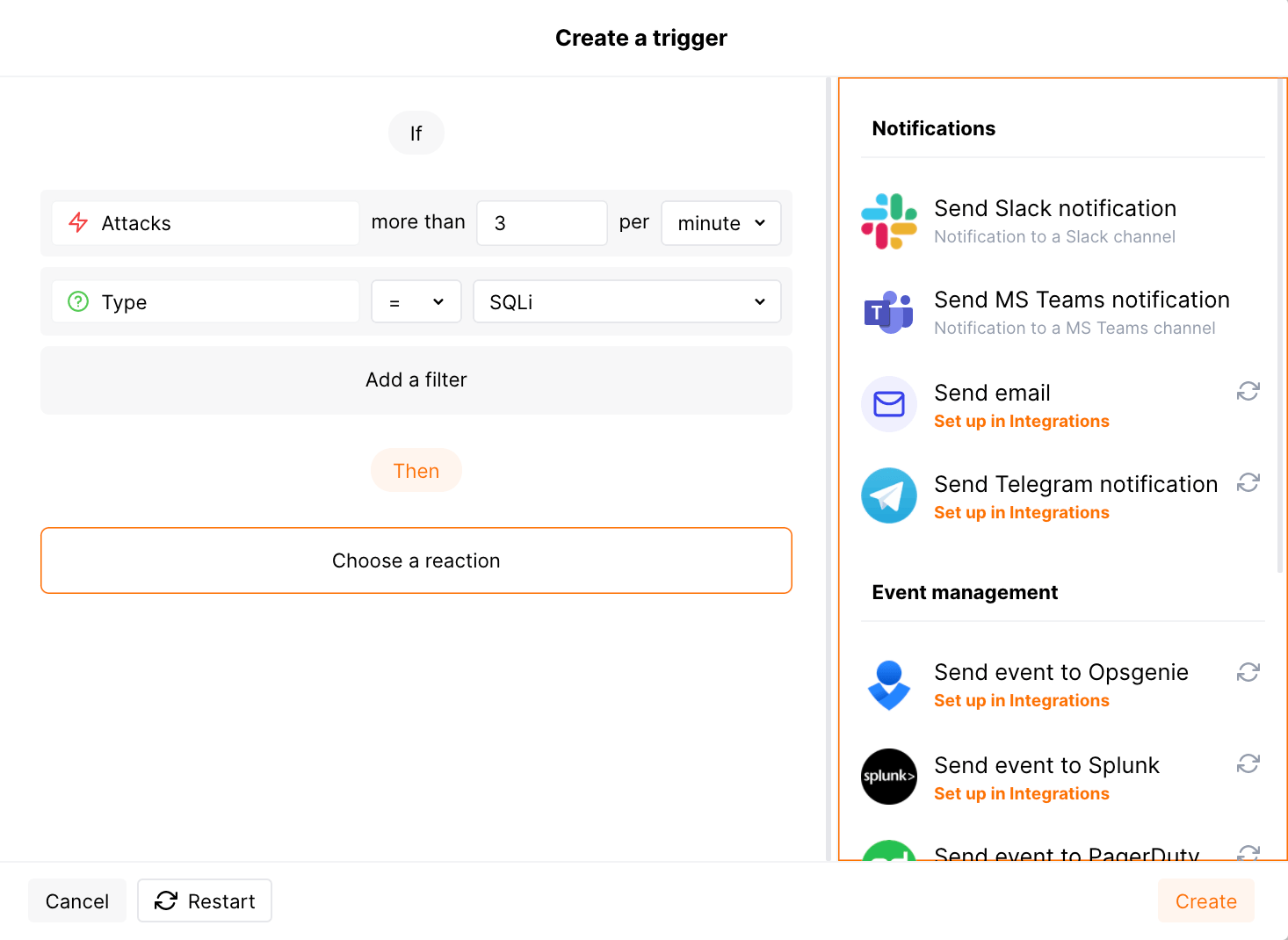
Example: Slack notification if 2 or more SQLi hits are detected in one minute
If 2 or more SQLi hits are sent to the protected resource, then a notification about this event will be sent to the Slack channel.
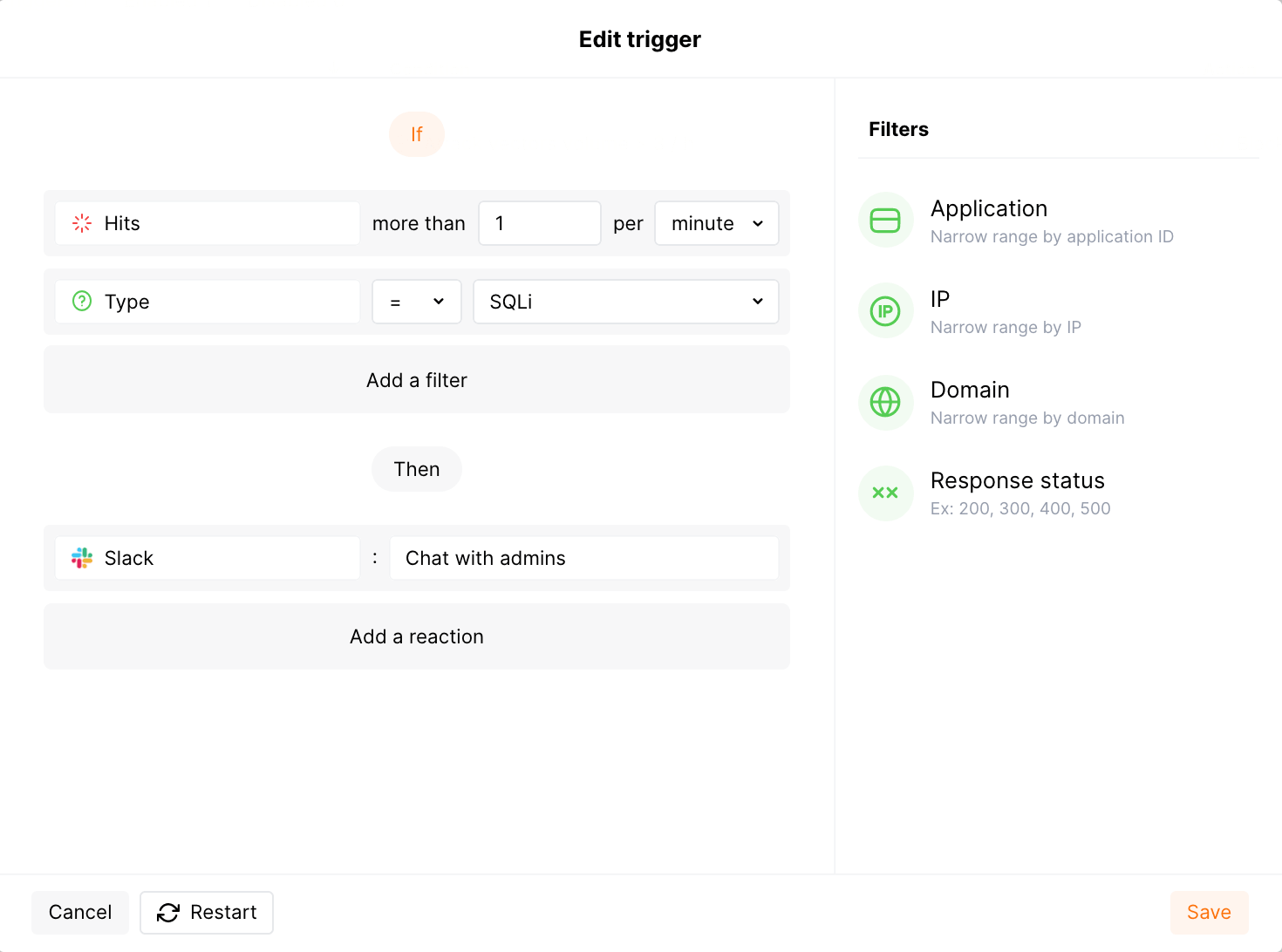
To test the trigger:
Send the following requests to the protected resource:
curl 'http://localhost/?id=1%27%20UNION%20SELECT%20username,%20password%20FROM%20users--<script>prompt(1)</script>'
curl 'http://localhost/?id=1%27%20select%20version();'
Open the Slack channel and check that the following notification from the user wallarm is received:
[Wallarm] Trigger: The number of detected hits exceeded the threshold

Notification type: attacks_exceeded

The number of detected hits exceeded 1 in 1 minute.
This notification was triggered by the "Notification about SQLi hits" trigger.

Additional trigger’s clauses:
Attack type: SQLi.

View events:
https://my.wallarm.com/attacks?q=attacks&time_from=XXXXXXXXXX&time_to=XXXXXXXXXX

Client: TestCompany
Cloud: EU
-
Notification about SQLi hitsis the trigger name -
TestCompanyis the name of your company account in Wallarm Console -
EUis the Wallarm Cloud where your company account is registered
Example: Slack and email notification if new user is added to the account
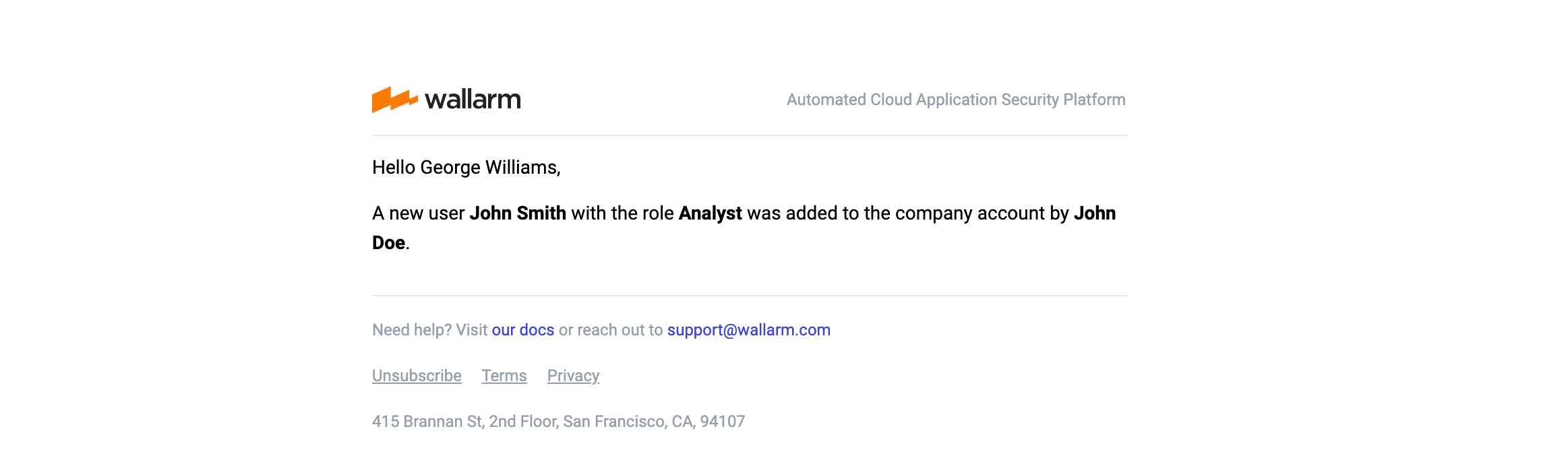
If a new user with the Administrator or Analyst role is added to the company account in Wallarm Console, a notification about this event will be sent to the email address specified in the integration and to the Slack channel.
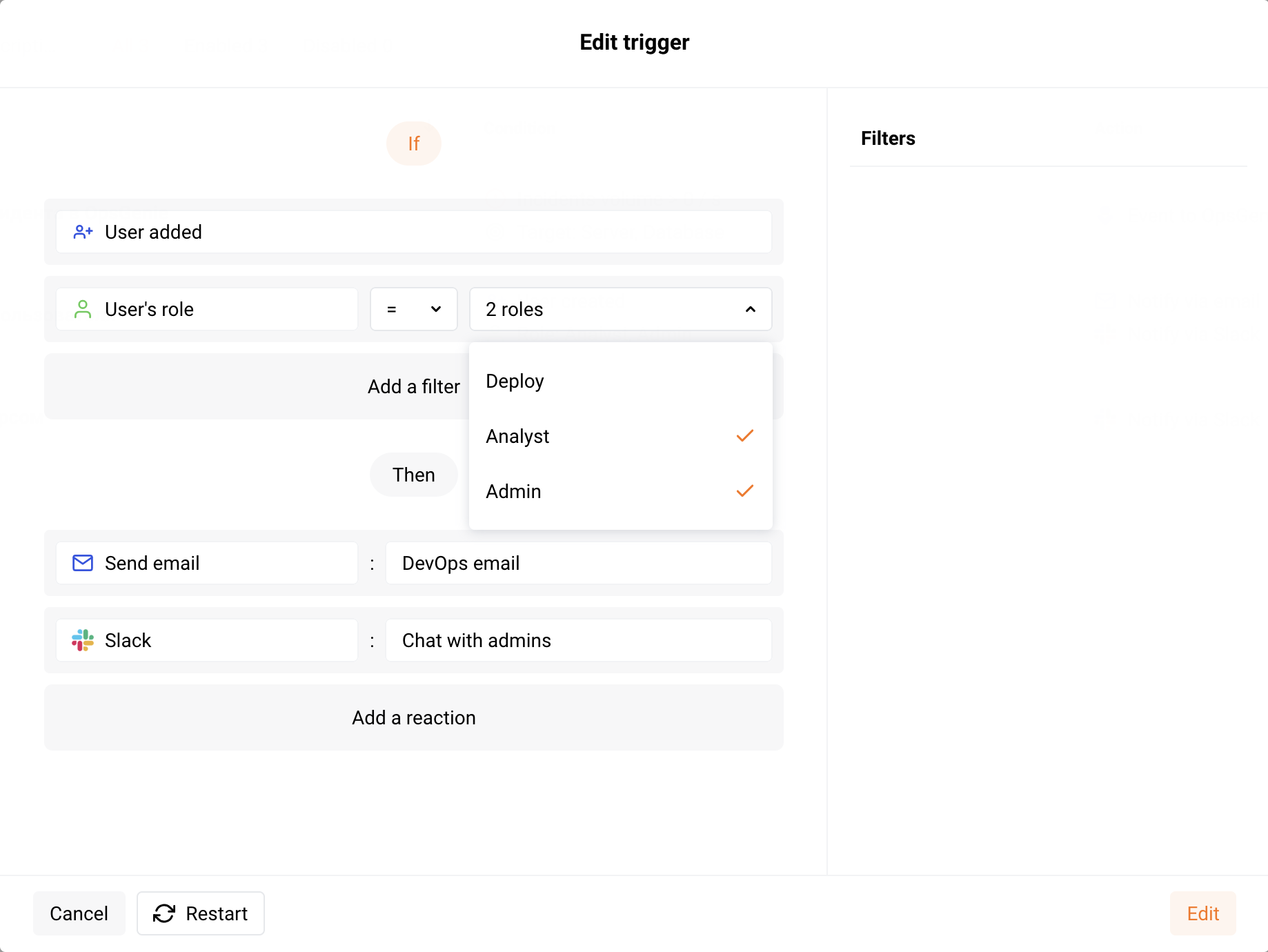
To test the trigger:
-
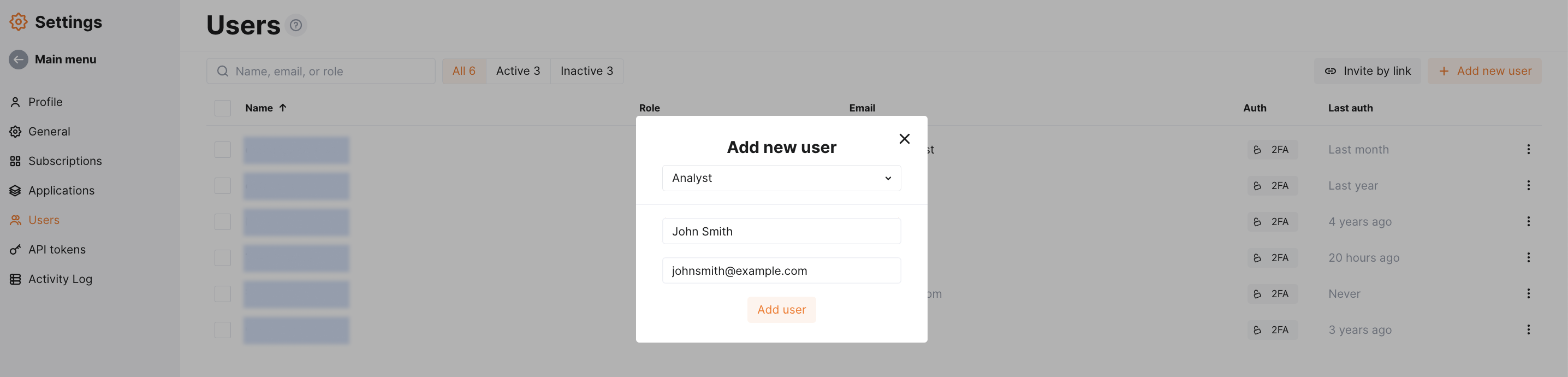
Open the Wallarm Console → Settings → Users and add a new user. For example:
-
Open your email Inbox and check that the following message is received:
-
Open the Slack channel and check that the following notification from the user wallarm is received:
[Wallarm] Trigger: New user was added to the company account

Notification type: create_user

A new user John Smith <johnsmith@example.com> with the role Analyst was added to the company account by John Doe <johndoe@example.com>.
This notification was triggered by the "Added user" trigger.

Client: TestCompany
Cloud: EU
John Smithandjohnsmith@example.comis information about the added userAnalystis the role of the added userJohn Doeandjohndoe@example.comis information about the user who added a new userAdded useris the trigger nameTestCompanyis the name of your company account in Wallarm ConsoleEUis the Wallarm Cloud where your company account is registered
Disabling and deleting an integration
You can delete or temporarily disable the integration. While deleting stops sending notifications and completely deletes all configuration, disabling just stops sending notifications, which you can re-enable at any moment with the same settings.
If the System related events are selected to trigger notifications for the integration, Wallarm will notify you about both of these actions.
System unavailability and incorrect integration parameters
Notifications to the system are sent via requests. If the system is unavailable or integration parameters are configured incorrectly, the error code is returned in the response to the request.
If the system responds to the Wallarm request with any code other than 2xx, Wallarm resends the request at intervals until the 2xx code is received:
-
The first cycle intervals: 1, 3, 5, 10, 10 seconds
-
The second cycle intervals: 0, 1, 3, 5, 30 seconds
-
The third cycle intervals: 1, 1, 3, 5, 10, 30 minutes
If the percentage of unsuccessful requests reaches 60% in 12 hours, the integration is automatically disabled. If you receive system notifications, you will get a message about the automatically disabled integration.